
Scalable VPS hosting, dedicated servers, and optimized WordPress hosting
Deploy WordPress, Linux/Windows VPS, web hosting, or dedicated servers from one easy management portal.




Global data centers in the USA, Europe, and Asia
Choose a convenient data center location for faster VPS and web hosting performance
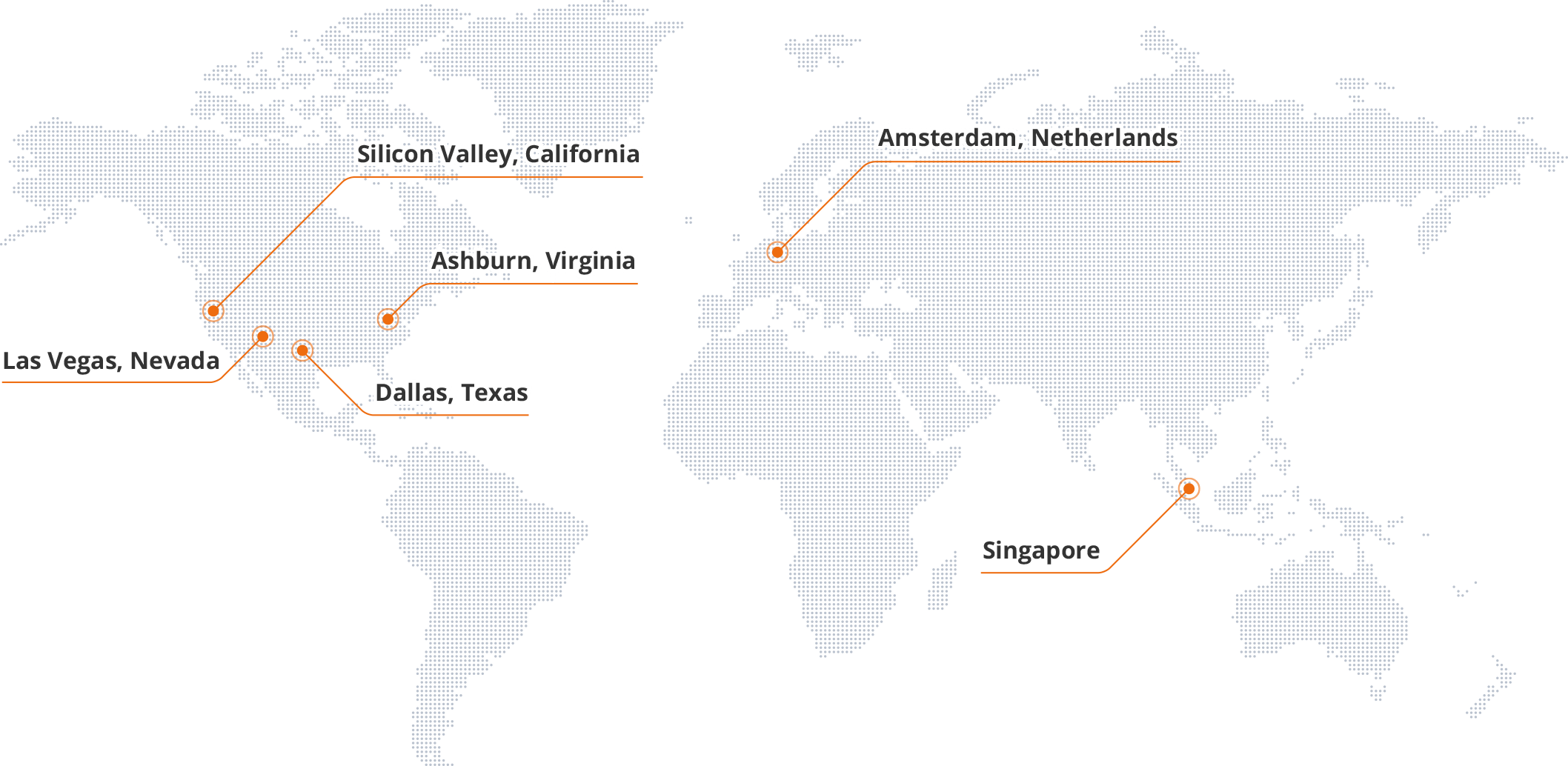
Global data centers in the USA, Europe, and Asia
Choose a convenient data center location for faster VPS and web hosting performance

- 1 Las Vegas, Nevada
- 2 Dallas, Texas
- 3 Ashburn, Virginia
- 4 Silicon Valley, California
- 5 Amsterdam, Netherlands
- 6 Singapore
All-in-one hosting platform: VPS hosting, dedicated servers, and optimized WordPress
Personal and small business web hosting
- 1-click installation of WordPress, Magento, Drupal, and more
- Business quality web e-mail and calendar, with anti-spam and malware protection
- Free SSL certificate included for security
- 24/7 in-house support



Professional level web hosting for agencies and growing businesses
Built for blazing-fast WordPress performance
LSWS web server
We use LiteSpeed LSWS, the fastest web server for WordPress.
HTTP/2 and HTTP/3
Sites served over the faster HTTP/3 protocol.
One-click installations
WordPress, Drupal, Joomla, and 70+ other apps in one click.
Our expertise!
Nearly two decades of web hosting, VPS, and dedicated server experience.

Professional level web hosting for agencies and growing businesses
Built for blazing-fast WordPress performance
We use LiteSpeed LSWS, the fastest web server for WordPress.
Sites served over the faster HTTP/3 protocol.
WordPress, Drupal, Joomla, and 70+ other apps in one click.
Nearly two decades of web hosting, VPS, and dedicated server experience.

Linux and Windows VPS hosting on ServerPoint's ColossusCloud platform
Deploy hundreds of VPS across USA, Europe, and Asia with fast flash storage and DDoS protection.
Distributed flash storage
Powered by Ceph with data replicated across multiple disks for high I/O and redundancy.
Windows and Linux!
Windows 11, 2008-2025 and popular Linux distros (Ubuntu, AlmaLinux, CentOS) with one-click cPanel install.
Fast!
Intel Xeon Gold and AMD EPYC processors for fast performance at a great price.
Easy deployment
Create a free account and deploy a virtual server in minutes.

Linux and Windows VPS hosting on ServerPoint's ColossusCloud platform
Deploy hundreds of VPS across USA, Europe, and Asia with fast flash storage and DDoS protection.
Powered by Ceph with data replicated across multiple disks for high I/O and redundancy.
Windows 11, 2008-2025 and popular Linux distros (Ubuntu, AlmaLinux, CentOS) with one-click cPanel install.
Intel Xeon Gold and AMD EPYC processors for fast performance at a great price.
Create a free account and deploy a virtual server in minutes.
Dedicated servers with massive compute and storage capacity
Extreme performance: Up to 128 real CPU cores, AI GPUs, and petabytes of storage
Deploy from our secure Nevada and Texas data centers with fast private networking (up to 100G) and fully customizable configurations. Contact us for a custom quote.

24/7 in-house support, no outsourcing
Our experienced team is available around the clock with an average response time of 15 minutes. Many of us have been with the company for over a decade.
-
 Average response time of 15 minutes
 -
 Real people, day and night
 -
 Our customers LOVE us!
 -
 We do not outsource

What We Are About
We are a private company, fully self funded
We have no debt and we have no investors that are constantly pushing for more profit at the expense of quality. ServerPoint.com is fully owned by its two founders, each with nearly three decades of experience in the field.
We've been an infrastructure as a service provider for nearly two decades.
We own our servers, operate a global network and our customer care staff is in-house.
We are obsessed with quality, redundancy and speed
We do not cut corners in how we build our infrastructure. We'll invest in the resources necessary to make our platform as stable as technology allows.
We have an amazing team
We find the best talent and keep them for the long term. Their experience is unmatched.
That's who we are: running a cloud company differently, better.
A variety of
professional services
Beyond servers: e-mail, SSL, domains, VPS, and bare metal from the same team.
Professional E-mail
Beautiful, easy-to-use webmail for your entire team.
Domain registration
Let us manage your domain registrations so that you never miss a domain renewal ever again.
VPS Hosting
High-performance Linux and Windows VPS with SSD storage, full root access, and instant deployment.
Bare Metal Servers
Dedicated hardware with up to 128 CPU cores, AI GPUs, and petabytes of storage — no neighbors, no sharing.